DHCP Explained: How Your Devices Get an IP Address
DHCP automatically gives your device a local IP, gateway, and DNS settings.
Key Takeaways
- DHCP uses leases, so addresses can change over time.
- Many “connected but no internet” issues are actually DHCP/DNS/gateway problems.
- You can often fix issues by renewing the lease, restarting the router, or correcting DNS settings.
What DHCP Does (And What It Doesn’t)
DHCP (Dynamic Host Configuration Protocol) is the system that automatically configures devices on a local network.
A typical DHCP assignment includes:
- Local IP address (e.g., 192.168.1.23)
- Subnet mask
- Default gateway (usually your router)
- DNS servers
DHCP does not give you your public internet IP directly. Your public IP is assigned to your router by your ISP (and may be shared under CGNAT). Keep the difference simple: - Local IP: inside your Wi‑Fi / LAN - Public IP: what websites see
DHCP Lease: Why IP Addresses Change
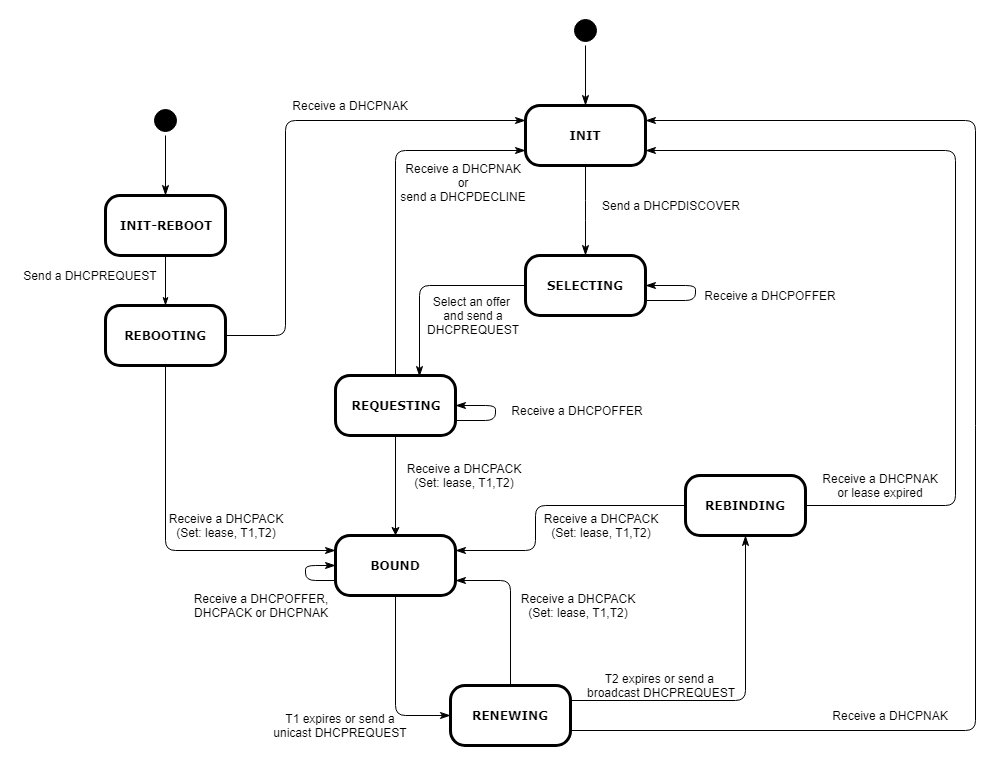
DHCP uses a lease to temporarily reserve an address for a device.
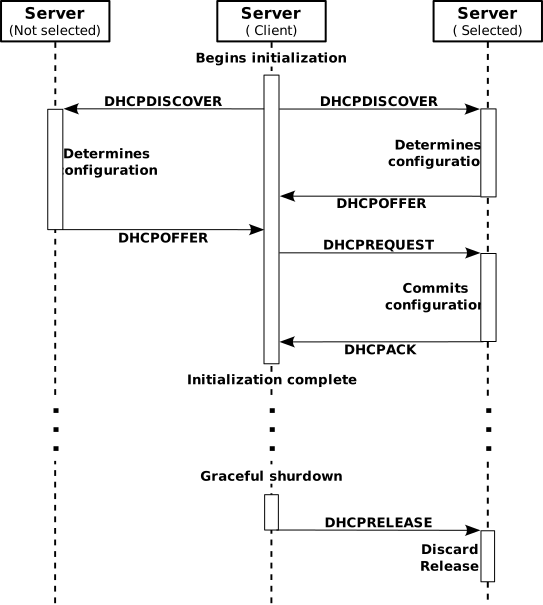
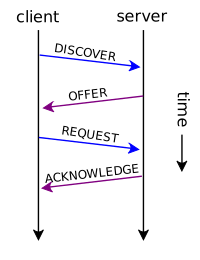
What happens in real life: - When you join Wi‑Fi, your device requests an address. - The router offers one and “leases” it to you for a period (hours/days). - Your device renews the lease periodically.
If a device is offline long enough, its old IP may be reused for someone else.
Router as the DHCP Server (Home Network Basics)
In most homes: - The router is the DHCP server. - Your devices are DHCP clients.
In offices: - A firewall, dedicated server, or controller may run DHCP instead.
If DHCP is misconfigured, devices can connect to Wi‑Fi but still fail to reach the internet.
Reserved IP vs Static Local IP (Common Confusion)
Two ways to keep a device’s local IP stable:
DHCP reservation (recommended) - Router always gives the same IP to a specific device (by MAC address). - Still managed centrally.
Manual static IP on the device - You enter IP/gateway/DNS manually. - Easy to break if you choose an IP outside the router’s plan.
If you don’t need stability (most users), leave it on automatic DHCP.
Common DHCP Problems (And What They Look Like)
1) Connected to Wi‑Fi but no internet Typical causes: - Wrong DNS servers assigned - Wrong default gateway assigned - Router is in a bad state
2) IP conflict (two devices claim the same IP) Symptoms: - Random disconnects - One device kicks another offline
3) DHCP pool exhausted If the router’s DHCP range is too small, new devices can’t get an address. Symptoms: - New device joins Wi‑Fi but never gets a valid IP
4) “Self-assigned IP” (169.254.x.x) Some systems assign a fallback IP if DHCP fails. Symptoms: - You can connect locally but can’t reach the internet
Common Fixes (Step-by-Step)
Try these in order: 1. Toggle Wi‑Fi off/on on the device. 2. Forget the network and reconnect. 3. Restart your router (power cycle 20–30 seconds). 4. Renew the DHCP lease on your device (OS network settings). 5. If you set a static IP manually, switch back to automatic. 6. If many devices fail, check if the router’s DHCP pool is too small.
Practical Implications in Real Systems
DHCP mostly affects your local connectivity, but IPVerdict can still help by confirming: - Your public IP (did it change after reconnecting?) - Your ISP / ASN context (did your exit network change?) - Differences between Wi‑Fi vs mobile data (useful when debugging)
Common Misunderstandings
Q1: Is DHCP safe to leave on for home use? Yes—automatic DHCP is the normal, safest default for most users.
Q2: Why does my phone work but my laptop doesn’t? Different DHCP/DNS settings or cached network profiles.
Q3: Can DHCP change my public IP? Indirectly—reconnecting your router to the ISP may change your public IP.
Q4: What’s the easiest way to keep one device’s IP stable? Use a DHCP reservation on the router.
Q5: Does DHCP affect website bans or captchas? Only indirectly via your public IP (which is separate from your local IP).
Limitations
- A working DHCP lease doesn’t guarantee internet access (DNS or upstream ISP could still be down).
- Some routers cache broken settings; a reboot is sometimes the fastest fix.
- Enterprise networks can use multiple DHCP servers and policies.
Disclaimer
The information in this guide is provided for educational and diagnostic use. Network behavior can vary by environment, configuration, and data sources, so results should be treated as informative signals rather than definitive proof.
Conclusion
Understanding these fundamentals helps you interpret network signals more confidently and troubleshoot issues with fewer false assumptions.